
Key takeaways
- A binary 0/1 mask must become 0/255 for an 8-bit alpha channel; alpha 1 is almost transparent.
- Select and inspect one mask at the original image size before exporting it. A predicted quality score cannot replace visual review.
- A hard segmentation mask is not a soft transparency matte, a 3D model, or proof of asset reuse rights.
Why a correct-looking mask can export an invisible icon
If your selected SAM 2 mask contains 0 and 1, convert those values to 0 and 255 before putting it into an 8-bit PNG alpha channel. Leaving foreground alpha at 1 makes it only 1/255 opaque, about 0.39%. That is an export error, not evidence that segmentation failed. PNG uses 0 for transparent and the maximum sample value for opaque.[6]
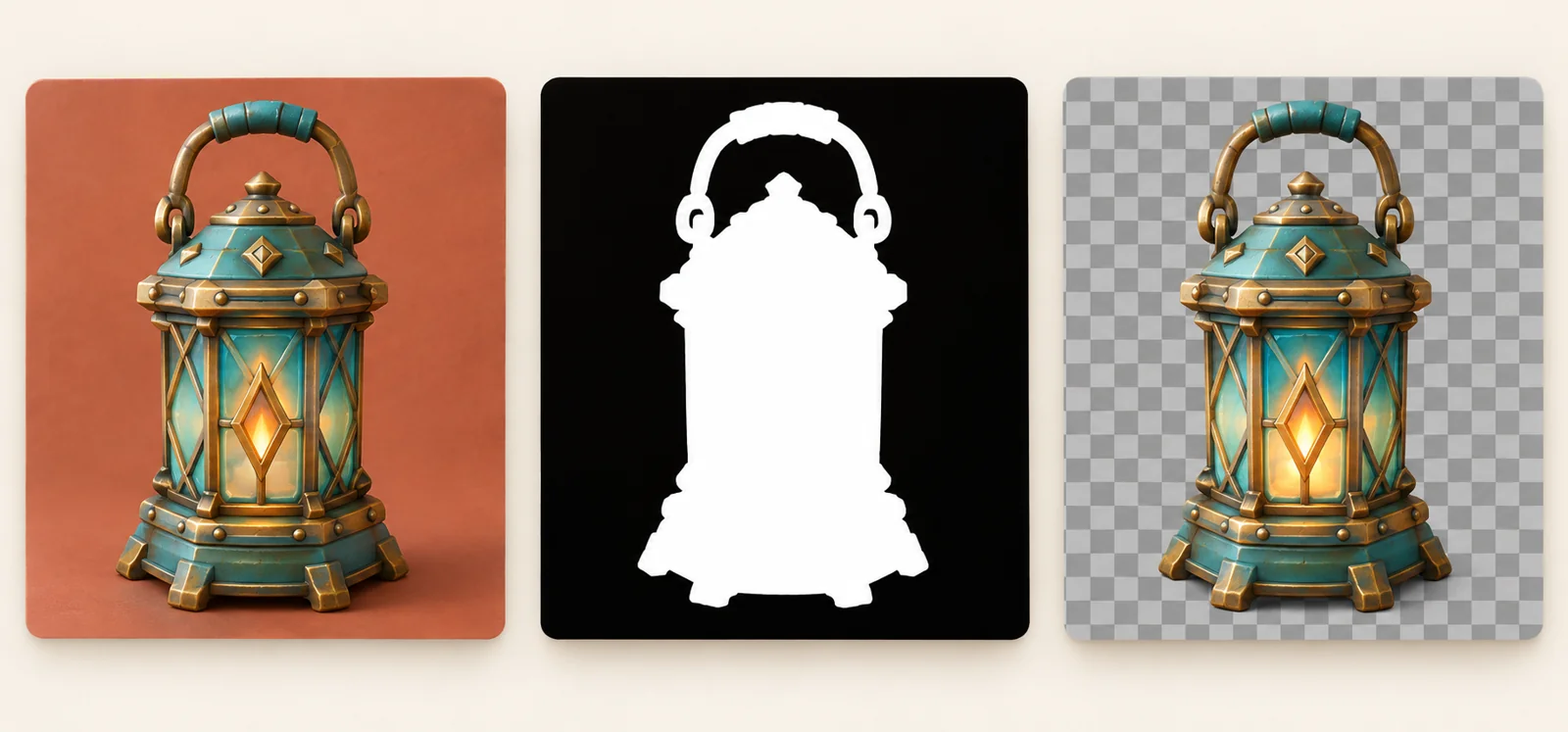
For a game inventory icon, keep two jobs separate: decide which pixels belong to the object, then encode those pixels correctly. This guide tests the second job with a tiny numerical fixture. It does not test SAM on the illustrated lantern or any real asset.
Start with one inspected mask, not the whole prediction tensor
Meta publishes SAM 2.1 checkpoints and examples, including a Hiera Tiny resource on Hugging Face. They are useful starting points for a separate segmentation workflow; the model was not run for this article. Follow the matching library instructions rather than assuming examples from different wrappers have identical shapes.[2][3]
In the pinned Meta SAM2ImagePredictor implementation, predict() returns candidate masks, quality predictions, and low-resolution logits. With return_logits=False, the masks are thresholded and then converted to floating-point NumPy arrays: binary values can therefore arrive as 0.0 and 1.0. The documented mask shape is C×H×W at the original image size. The low-resolution logits are a different return value, not the alpha layer to paste directly.[1]
With multimask_output=True, that predictor documents three candidates. A quality score can help select a candidate, but inspect the actual silhouette before using it: a high-scoring region may still be the wrong object for your icon. Check handles, holes, detached details, and unwanted background islands.[1]
The Transformers wrapper instead documents post_process_masks() and original_sizes. Its examples retain object/candidate dimensions after post-processing. Select the correct image, object, and candidate explicitly; do not blindly squeeze every dimension or resize an arbitrary tensor until it fits.[4]
Use an explicit RGB-plus-binary-mask contract
The small converter below accepts only an H×W×3 uint8 RGB array and one same-sized H×W mask containing finite 0/1 values. It deliberately rejects logits, soft values, and a stack of candidates. Those cases need a different, explicit preparation step. Pillow putalpha() adds or replaces an alpha layer; its image form must be mode L or 1 and match the source dimensions.[5]
import numpy as np
from PIL import Image

def cutout(rgb, mask):
    """Accept one same-resolution binary 0/1 mask; reject logits/soft mattes."""
    rgb, mask = np.asarray(rgb), np.asarray(mask)
    if rgb.ndim != 3 or rgb.shape[2] != 3 or rgb.dtype != np.uint8:
        raise ValueError('rgb must be an H x W x 3 uint8 array')
    if mask.shape != rgb.shape[:2]:
        raise ValueError('mask must be one H x W array matching rgb')
    if not np.all(np.isfinite(mask)) or not np.all((mask == 0) | (mask == 1)):
        raise ValueError('mask must contain only finite binary 0/1 values')
    alpha = mask.astype(np.uint8) * 255
    out = Image.fromarray(rgb)
    out.putalpha(Image.fromarray(alpha))
    return out


# rgb and selected_mask must satisfy the contract above.
# cutout(rgb, selected_mask).save("item.png")This helper intentionally starts from RGB. Do not silently pass an existing transparent RGBA asset through it: converting to RGB and replacing alpha would discard its previous transparency. If an existing alpha channel matters, define and test how it should combine with the new selection.[5]
What the pixel test actually reproduced
The downloadable script creates an original 6×4 RGB grid and a hand-defined mask with eight selected pixels. It writes both a correctly scaled PNG and an intentionally unscaled PNG, reopens them with Pillow, and checks the stored values. It uses Python 3.12.14, NumPy 2.3.5, and Pillow 12.3.0. No model, network request, private image, or inference endpoint is involved.
| Check | Scaled export | Unscaled export |
|---|---|---|
| Alpha values stored in PNG | 0 and 255 | 0 and 1 |
| Selected pixel at x=1, y=1 | RGBA (50, 80, 170, 255) | RGBA (50, 80, 170, 1) |
| Fully opaque pixels | 8 of 24 | 0 of 24 |
| Fully transparent pixels | 16 of 24 | 16 of 24 |
The correct file preserved every RGB value. All-zero and all-one masks passed their expected alpha checks. Five bad inputs were rejected: wrong size, a candidate stack, a 0.5 soft value, a negative logit, and NaN. These are narrow data-contract tests; they say nothing about whether a model selects a sword, hair strand, or glass surface correctly.
Download the script and run python alpha-fixture.py --output ./alpha-output with the recorded NumPy and Pillow versions. The output directory contains source.png, correct.png, unscaled.png, and alpha-results.json. The public results include the complete input arrays, selected pixel, package versions, and PNG hashes so you can inspect or reproduce the arithmetic.
Keep hard masks, soft edges, and reuse rights separate
A binary export gives each pixel either full opacity or full transparency. It does not recover partial coverage, translucent glass, smoke, or fine hair detail. Blurring an edge may make a graphic look softer, but it is not a measurement of the original scene’s transparency. Treat soft matting as its own task and inspect the asset over light and dark backgrounds before shipping.
PNG stores non-premultiplied color values: RGB is not multiplied by alpha in the file. Do not darken the RGB pixels a second time while preparing this export. What a renderer does after loading, including filtering and blending, is a separate integration question and was not tested here.[6]
Meta’s model card identifies the checkpoint license as Apache 2.0, and its repository describes the code/checkpoint licenses and a separate third-party component. Those statements describe the resources, not a grant to reuse whatever source picture you segment. Use images you own or are permitted to adapt and distribute; removing a background does not establish those rights.[2][3]
A practical handoff checklist for an inventory artist
- Record the model/checkpoint and library version, the original RGB image, prompts, and which candidate was selected. Do not confuse a predicted score with an artist’s acceptance.
- Inspect the silhouette at the intended icon size. Look for clipped accessories and background fragments rather than judging only a large preview.
- Verify the final mask shape and its actual values before conversion. Keep the original source and selection so the export is reversible.
- Open the exported PNG over light and dark backgrounds. Confirm that foreground opacity is intentional, then separately test its import and display in your project.
- Keep provenance and permissions with the asset. A finished transparent PNG is a 2D cutout, not a rigged or game-ready 3D object.
For a larger asset workflow, this cutout can be a carefully inspected reference or UI graphic. Decide separately whether your next task needs a 2D sprite, a 3D reference, or a browser renderer; none of those outcomes follows automatically from having an alpha channel.
Evidence used
- Original alpha-export results and full pixel fixture
Actual saved-and-reopened PNG pixel results from a synthetic 6x4 RGB grid and binary mask. No model inference or real-image quality evaluation.
- Reproduce the alpha-export fixture
Original Python script with embedded input arrays, PNG round-trip assertions, package versions, output hashes, and five invalid-input rejection tests.
Sources
- 1.Pinned SAM 2 image predictor source — Meta. Accessed 2026-10-03.
- 2.SAM 2.1 Hiera Tiny model card — Meta. Accessed 2026-10-03.
- 3.SAM 2 usage and license notes — Meta. Accessed 2026-10-03.
- 4.Transformers SAM2 post-processing documentation — Hugging Face. Accessed 2026-10-03.
- 5.Pillow Image.putalpha reference — Pillow. Accessed 2026-10-03.
- 6.PNG alpha representation — W3C. Accessed 2026-10-03.
Plan the next step for your asset
Explore Goblin3D’s workflows, then inspect the requirements of your own game or creative project.
Explore Goblin3DRelated Goblin3D guides and tools
Sources, product facts, and original evidence were checked before publication.