
Which images work best for image-to-3D generation?
Use a sharp image with one centered object, a clear silhouette, even lighting, and as little background clutter as possible. Hidden or ambiguous parts may require manual refinement.
Start with a clear reference. Goblin3D builds the shape, depth, and surface detail for you.
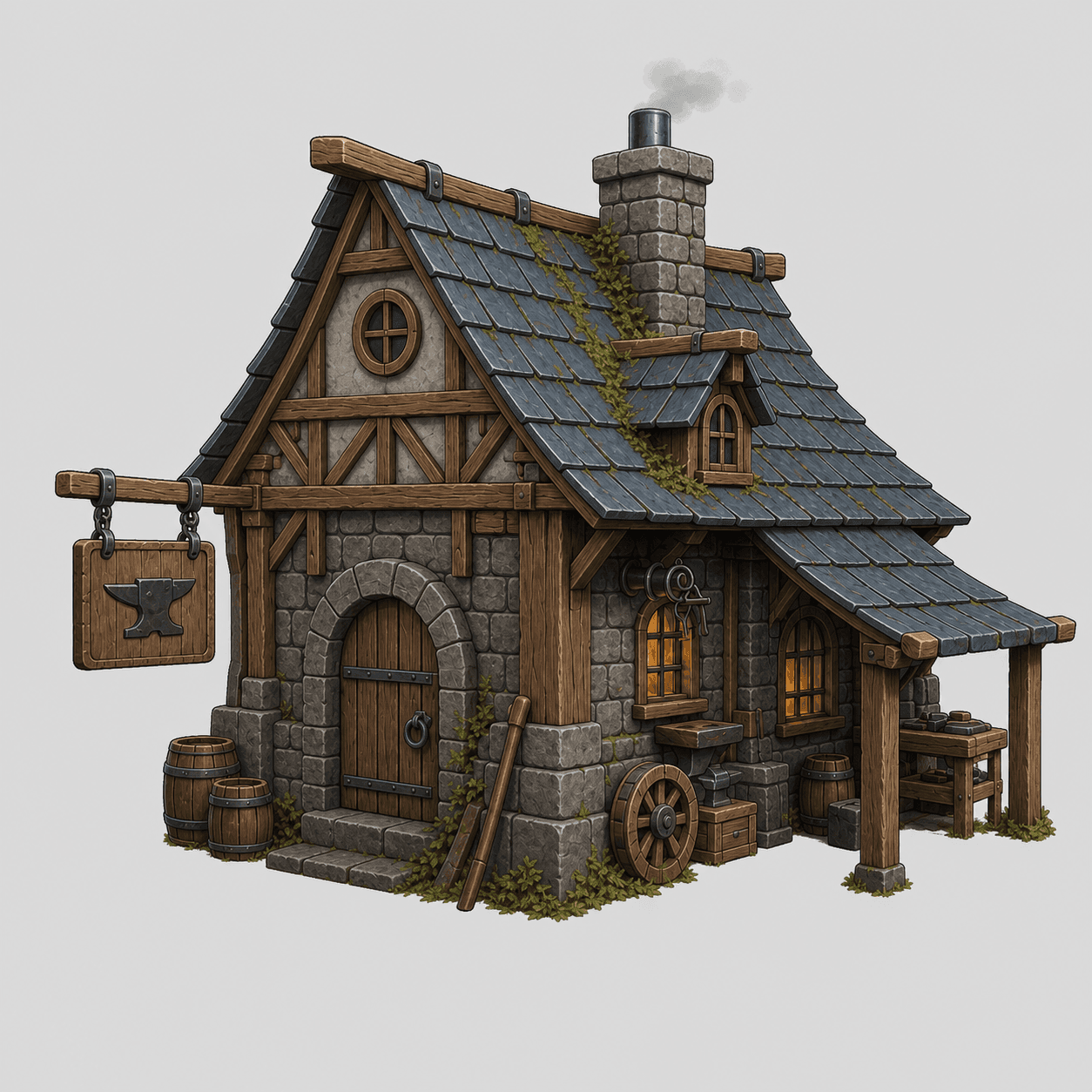
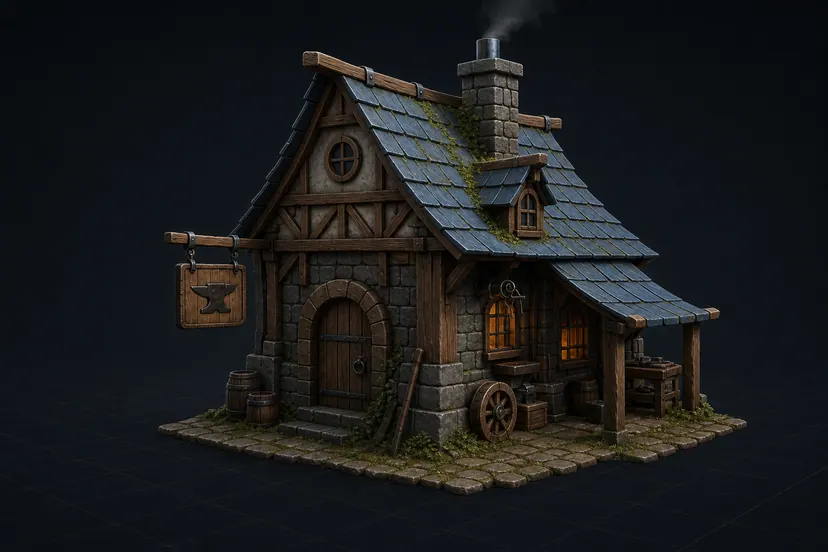
Focus on shape and silhouette.
Add color and surface character.
Light reacts naturally to metal, stone, and wood.
PBR describes how a surface responds to light, so materials feel more believable.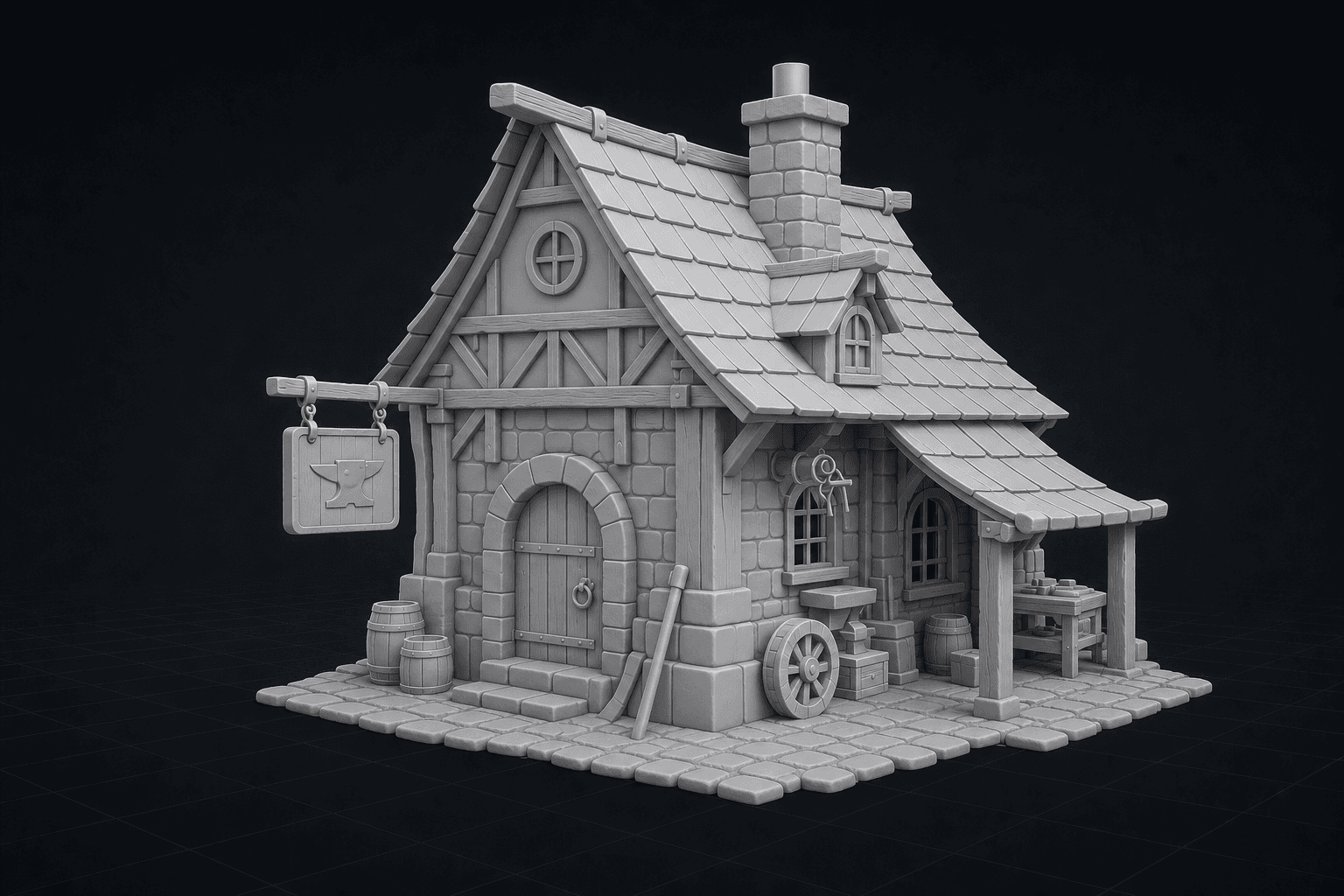
Add front, side, and back references to guide parts a single image cannot show.
Use one image for speed, or add more angles when the shape matters.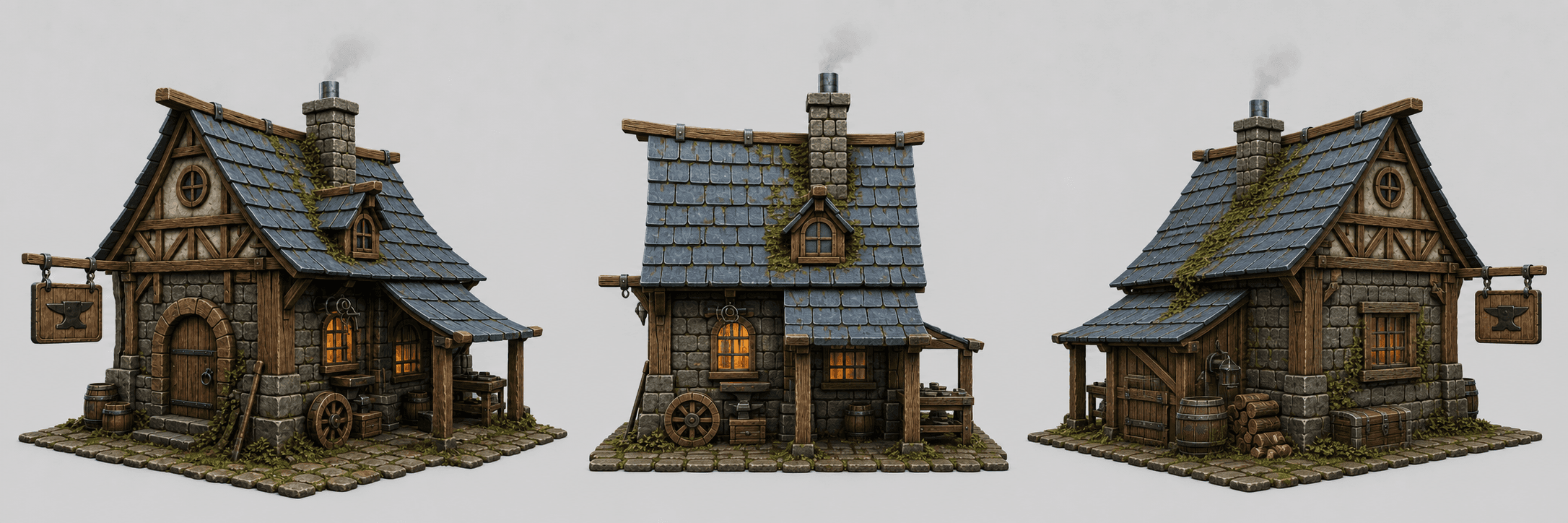
Export your model and keep creating in the tools you already use.
Direct answer
Goblin3D converts a PNG, JPG, or WebP reference into a textured 3D model. Use one image for a quick result or provide front, left, back, and right references when the shape needs more guidance.
Use a centered subject with a readable silhouette and minimal background clutter.
Use a single image for speed or multi-view input for more shape guidance.
Inspect the generated model, then export it in a supported 3D format.
Use a sharp image with one centered object, a clear silhouette, even lighting, and as little background clutter as possible. Hidden or ambiguous parts may require manual refinement.
Yes. The multi-view workflow supports an ordered front view plus left, back, and right references. Multi-view access is included in paid plans.
Paid plans provide GLB, OBJ, and FBX exports. The model can then be inspected and imported into compatible tools such as Unity, Godot, or Blender.
No automatic generator can guarantee that for every input. Review topology, scale, materials, and performance in your target engine, and refine the result when your project requires it.