
Key takeaways
- Check prompt text before entering a network-enabled form: a price preview can send it before generation.
- A viewport image and a selected-mesh GLB carry different information; inspect the intended reference type.
- Uploaded references are snapshots. Re-upload after changing the scene content that should guide the result.
Review the input before the first network action
Before using Scenario for Blender, review three separate decisions: what prompt text may be sent for pricing, which scene reference you upload, and which generation you approve. Waiting until Generate is too late to review every transmission: the documented live cost preview can already send prompt text and available parameters.[3]
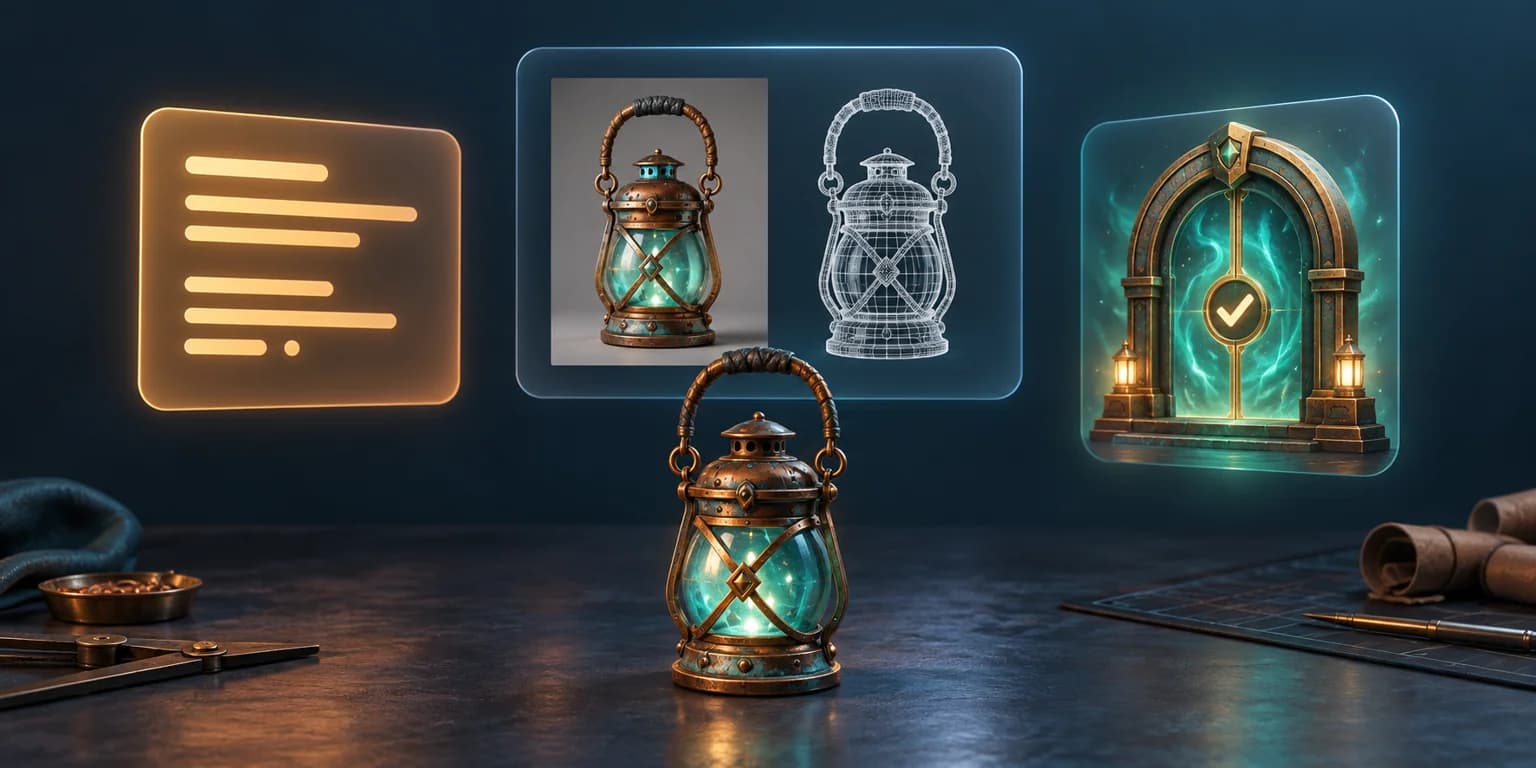
Scenario’s October 14, 2026 X announcement introduces its Blender plugin and agent-assisted workflow. The useful question for a creator is more specific than the feature list: what exactly crosses each boundary when a scene becomes an input?[1]
This guide audits repository revision 861d554, committed October 14, 2026. The handbook calls the extension experimental, requires Blender 5.0 or later plus a Scenario account with API access and internet, and warns that development documentation can describe unreleased changes. Check the handbook packaged with your installed release. We did not install the plugin, submit a job or test output quality.[2]
A price preview, an upload and a generation are different
The privacy documentation distinguishes a dry-run estimate from generation. With valid credentials and online access, editing the visible form can request a price using your prompt and available parameters. A price check does not start generation, but it is still a transmission. Prompt helpers also have their own estimate and approval steps.[3]
| Stage | Review first | What the decision does not establish |
|---|---|---|
| Prompt pricing | Whether the text is suitable to send | Approval to upload a scene reference |
| Reference upload | The actual pixels, clip or mesh snapshot | Approval to spend on generation |
| Generation | The final inputs and current quote | That a later scene edit updates the uploaded reference |
A practical team rule is to prepare a sanitized prompt outside the live form, then paste only approved text. Keep client names, unreleased story details and unrelated notes out unless your project has specifically approved sending them. This is an editorial workflow recommendation, not a claim that the plugin detects confidential content.
Choose pixels or geometry deliberately
The general form distinguishes local preparation from Upload reference. It can use a still, clip or selected mesh. The Render Image lane instead names a combined Capture and upload scene action. Read the action in the lane you are using; do not assume every capture has an intervening review screen.[2]
For an image reference, inspect what is actually visible: framing, unintended objects, material appearance and the part of the scene you want to preserve. For a clip, inspect the complete intended range rather than its first frame. These are different review tasks from checking a mesh selection.
A GLB can package scene JSON, buffers and image data in one file. The glTF standard also permits a GLB to reference external resources, so the extension’s export behavior matters more than the filename alone. A .glb extension is not proof that a file contains only geometry.[6]
The inspected Scenario mesh helper enables selected-object export, applied modifiers, materials, texture coordinates and normals, while turning animation export off. Its source-object helper gathers all selected mesh objects, with an active-mesh fallback if none are selected. That supports checking the whole selection set rather than assuming only the active prop will be sent. These are source-code findings, not observations from a live Blender export.[4]
A scene edit does not update an uploaded snapshot
The guide describes uploaded mesh references as snapshots: later edits do not alter them. Remove the reference and upload again when the revised mesh should be used. The same practical distinction applies to an uploaded clip and subsequent timeline edits.[2]
For example, suppose you upload a lantern, then replace its handle and change its material. Write down which version the request should use before paying for another result. If it should use the revised lantern, replace the old reference; changing the visible scene alone is not a reliable handoff. This is an authored example, not a reproduced plugin session.
Use the six-boundary audit as a handoff worksheet
The companion CSV classifies six documented boundaries: prompt pricing, still references, mesh references, clip references, prompt helpers and local-agent access. Each row links its source and states whether it comes from documentation or static helper inspection. The README includes a blank worksheet you can copy into your own project.
- Record the installed release and the matching handbook before relying on a UI instruction.
- Write the task and approved prompt text. Identify whether it needs pixels, a clip or a mesh.
- List every intended mesh object, or inspect the actual image and full clip range.
- Record the approved reference version and whether it must be replaced after scene edits.
- Review any prompt-helper charge separately from the final generation quote.
- If an agent is connected, state which reads, uploads and paid actions it may perform.
The matrix is a source-backed planning aid. It does not measure network traffic, certify privacy compliance, benchmark generation, or prove that every model accepts the same input. Do not treat an unchecked worksheet as an approval.
Keep release, rights and agent permissions in scope
A connected local agent is another access boundary: the documented tools can request scene information, captures, uploads and paid work. Give it explicit project scope instead of treating the UI’s Generate button as the sole control for every action.[3]
The repository declares GPL-3.0-or-later for its first-party extension code. That code license does not answer whether you may submit a particular client asset or reuse a third-party reference. Review those rights separately. This article’s companion is original analysis; it redistributes neither plugin code nor promotional media.[5]
If you are starting a new prop rather than editing an existing scene, Goblin3D Image to 3D accepts an image reference, with GLB, OBJ and FBX export on paid plans. Start with a reference you are allowed to use, inspect the exported asset, and apply the same explicit input-review habit before sending it into another tool.[7]
Evidence used
- Download the six-boundary source audit
Original classification of documented input triggers and preflight decisions; no runtime measurement.
- Use the input-review worksheet
A reusable preparation worksheet, source revision and explicit evidence limits.
Sources
- 1.Scenario Blender plugin announcement — Emm | Scenario. Accessed 2026-10-15.
- 2.Scenario user guide at revision 861d554 — Scenario. Accessed 2026-10-15.
- 3.Documented data handling at revision 861d554 — Scenario. Accessed 2026-10-15.
- 4.Selected-mesh export helper at revision 861d554 — Scenario. Accessed 2026-10-15.
- 5.Scenario requirements and licensing — Scenario. Accessed 2026-10-15.
- 6.glTF 2.0 specification: binary glTF — Khronos Group. Accessed 2026-10-15.
- 7.Goblin3D Image to 3D — Goblin3D. Accessed 2026-10-15.
Start with a reference you can review
Explore Goblin3D Image to 3D for your next prop, then inspect the asset before its next handoff.
Explore Image to 3DRelated Goblin3D guides and tools
Sources, product facts, and original evidence were checked before publication.