
Key takeaways
- Choose a live session for exploration and a saved segment workflow for a reviewable shot plan.
- Record movement end states explicitly; short key taps and camera pose values are not reliable substitutes for a controlled shot.
- A navigable video stream is not evidence of an exported mesh, rig or game simulation.
Treat camera control as a shot plan
For a reviewable Reactor camera shot in ComfyUI, start with the matching example, plan one movement at a time, and record where each control returns to idle. Save the workflow and reference alongside the take. Use the offline checks below to catch planning mistakes before trying the service; they do not run or evaluate the model.
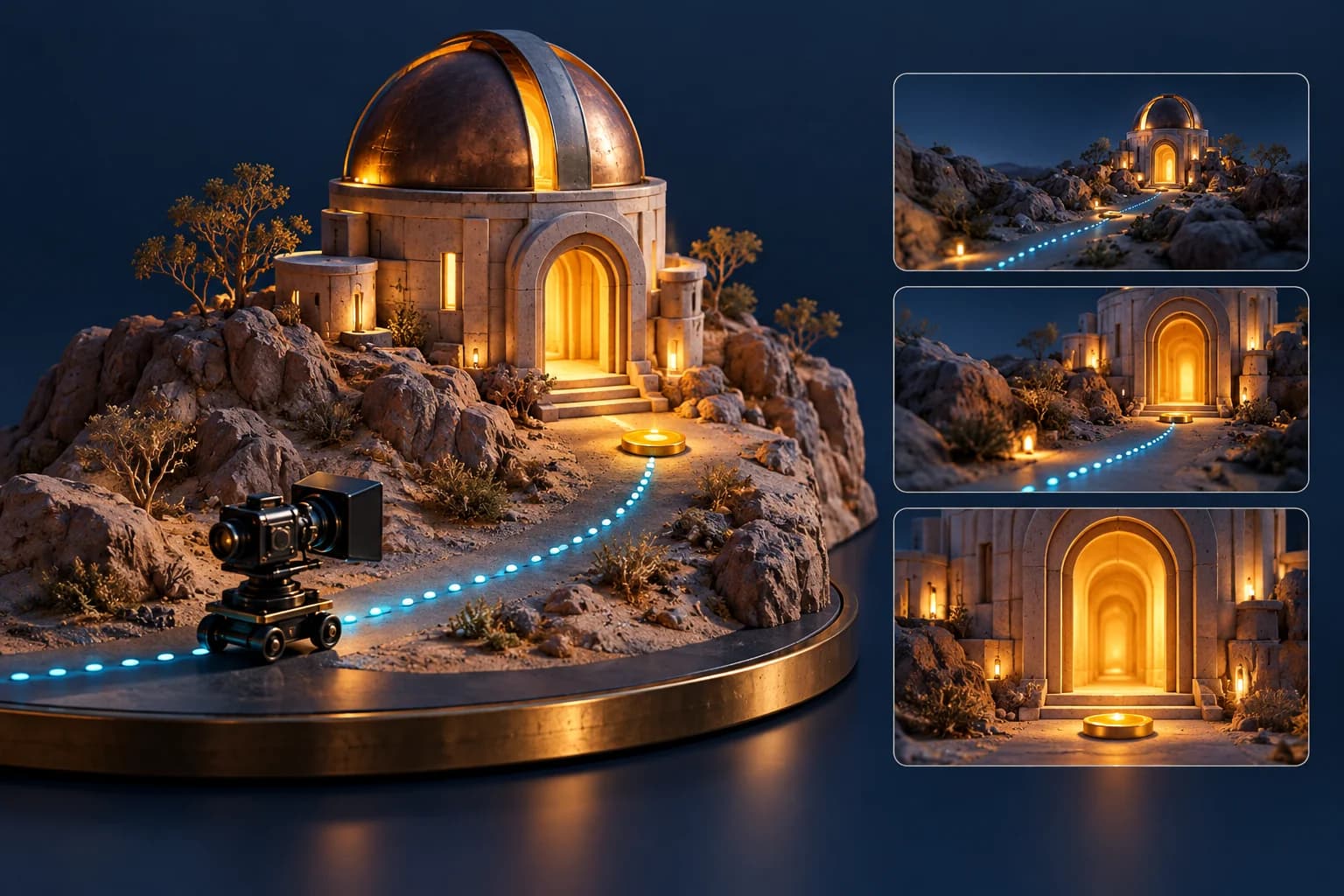
Reactor’s ComfyUI integration offers live steering and segment-based video rendering. This guide focuses on LingBot World 2 camera planning, not the similarly named face-swap extensions. The inspected integration revision is 81c641c.[1]
Choose live exploration or a scripted sequence
The Reactor Realtime node opens an interactive session; model-specific Segment nodes feed Reactor Render for a scripted video. Choose the former to explore a composition and the latter when a teammate must understand the intended sequence. The repository requires its custom-node installation, dependencies in ComfyUI’s Python environment, a Reactor API key and example input files. This is a service-connected workflow, not proof of local inference.[1]
ComfyUI’s template browser supports custom-node examples. Find the Reactor category and use the LingBot World 2 example matching your mode; do not substitute an unrelated model’s graph just because it also produces video. Save a separate copy before editing.[5][1]
Before any live run, review the service’s current access, billing and input-data terms. Use an image you have permission to upload. No account, API request or paid generation was used for this article.
Write a small, observable shot brief
Try a reference with one clear landmark, such as an observatory entrance. Write three intended beats: approach the entrance, stop, then look left. Give each beat one visual acceptance condition: the entrance grows in frame; forward motion ceases; the left side becomes visible. These are proposed review criteria, not outcomes demonstrated here.
- Keep the same reference file and record its hash, prompt, model name, seed and workflow revision.
- Change one control at a time for the first comparison. Record what you requested separately from what the video showed.
- Keep an untouched take. A trimmed highlight can conceal a drift, restart or failed stop.
ComfyUI can save workflow JSON independently of output media. Store that graph with the reference and your shot notes, rather than relying on a video filename to reconstruct the experiment. A saved graph documents setup; it does not establish identical future video.[4]
Why a tap can disappear and a move can continue
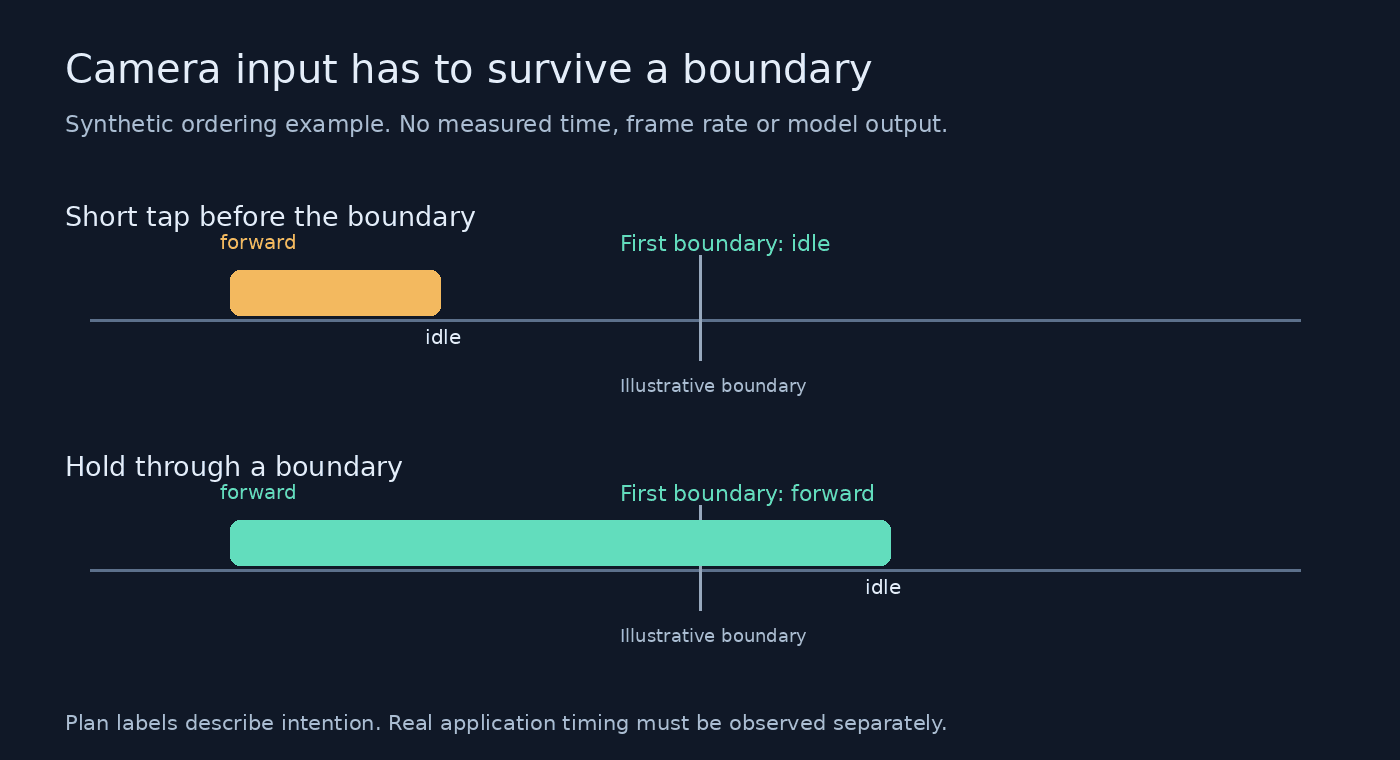
LingBot World 2 uses a reference image and prompt to generate a navigable video stream. Its documentation describes camera controls as persistent state applied at chunk boundaries. A forward command remains active until changed, while a press and release between boundaries may never become visible. Treat a short tap as a timing uncertainty, not evidence that the command is unsupported.[2]
In the command schema, the longitudinal field accepts forward, back or idle; lateral movement uses strafe_left, strafe_right or idle. Returning one axis to idle does not document the state of the other. For an intentional stationary beat, account for every movement and look axis you activated.[3]
Our planning recommendation is to write explicit end states even when a higher-level workflow handles them for you. That makes the intended stop inspectable. It is not a claim that every plan without an idle command is rejected by the service.
Keep pose, pause and reset distinct
The advanced camera_pose input is a series of six-value motion deltas, not absolute camera positions. Its rotation overrides look controls and its translation combines with movement; an empty list deactivates it. The docs describe pose as generative guidance, not a guaranteed camera rig. Start with the basic axes before combining these layers.[3]
Pause finishes the current chunk before stopping generation. Reset returns to the waiting state and clears the image and prompt, so stage both again before starting. Plan the end of a session explicitly: the overview says completed runs can restart automatically. These lifecycle controls are separate from making the camera stationary.[3][2]
Inspect a plan before making an API call
The downloadable lab uses an original, deliberately small JSON planning format. It checks command fields and lifecycle assumptions, and flags missing movement cleanup as an authoring warning. It includes valid and deliberately broken fixtures so you can inspect both acceptance and failure cases. Read its README before adapting it.
All 12 automated tests passed across seven authored fixtures, including plans expected to fail validation. Run the included Python checks locally, then inspect validation-report.json. The plan files are not ComfyUI workflow exports, SDK requests, or a complete implementation of Reactor’s protocol. Their scheduling labels belong to the lab. Do not send the files to the API or drag them into ComfyUI expecting a runnable graph.
The synthetic boundary illustration holds the comparison schedule fixed to explain how two changes can collapse into one visible state. It does not measure Reactor’s chunk duration or network timing. A passing offline plan still needs visual review of a real take; it cannot establish image quality, motion fidelity or throughput.
Decide whether you need video or an actual asset
Use a world-model take as visual exploration for a shot or environment brief. This documented path outputs video; it does not demonstrate an exported level, collision geometry or skeletal animation. Keep those acceptance tests separate from camera-control review.[1]
If the next deliverable is a reusable prop, Goblin3D’s public Image to 3D workflow accepts a visual reference. Start with a clear, permitted reference and inspect the model separately. A successful video take does not validate the resulting asset.[6]
Evidence used
- Reproduce the offline camera-plan checks
Original planning format, fixtures, commands and explicit limitations; no live model execution.
- Inspect the fixture audit report
Results from original offline plans, separating validation errors from authoring warnings.
- Download the complete offline planning lab
Original linter, fixtures, tests, report and synthetic diagram; not an executable model workflow.
Sources
- 1.Reactor ComfyUI integration, pinned README — Reactor. Accessed 2026-10-11.
- 2.LingBot World 2 overview — Reactor. Accessed 2026-10-11.
- 3.LingBot World 2 command and lifecycle schema — Reactor. Accessed 2026-10-11.
- 4.Saving and sharing ComfyUI workflows — ComfyUI. Accessed 2026-10-11.
- 5.Custom-node workflow templates — ComfyUI. Accessed 2026-10-11.
- 6.Goblin3D public features — Goblin3D. Accessed 2026-10-11.
Turn a clear reference into a prop starting point
When you need a 3D asset, try Goblin3D Image to 3D and review the model independently of your video experiment.
Explore Image to 3DRelated Goblin3D guides and tools
Sources, product facts, and original evidence were checked before publication.